
How to Annotate Research Papers: A PDF Annotation System
Open a paper you highlighted in your first year. If it looks like someone spilled a yellow highlighter across every page, you’re in good company. You read it, you clearly cared, and the highlights now tell you nothing at all.
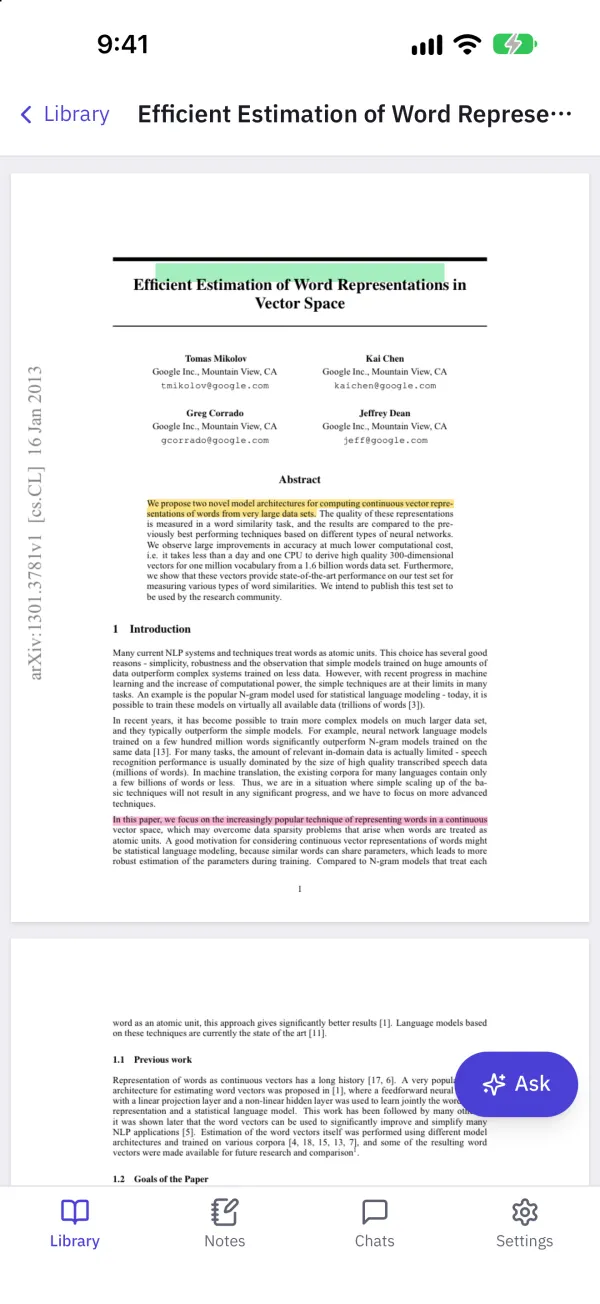
To annotate research papers well, use a small, fixed colour code (four or five colours, each with one meaning), highlight only the sentences you’d actually come back for, and write short margin notes saying why each one matters. Annotate on your second pass, not your first skim. Then get the annotations out of the PDF and into a note, where you can search them.
That’s the whole system. The rest of this post fills it in: a colour code you can adopt today, what to highlight and what to leave alone, margin notes that pay off, tools, and exporting.
Why most PDF highlighting doesn’t help
Highlighting feels like work. That’s the trap. You drag the cursor, the sentence turns yellow, and it feels as if you’ve learned something. You’ve recorded attention, not understanding.
What makes annotations useful is what you add on top: colours that always mean the same thing, so you can skim a paper’s annotations in thirty seconds, and a note that says what you thought.
Timing matters too. On a first pass you don’t know what’s important yet, so everything in the abstract looks worth keeping. Wait for the second pass, once you know the paper matters to you. The multi-pass method for reading a research paper quickly explains how to decide which papers earn one.
A colour code for annotating research papers
Four or five colours. Any more and you’ll forget what purple meant by Thursday. Here’s a set that works in most fields:
| Colour | Meaning | Typical example |
|---|---|---|
| Yellow | Main claim or result | “Flux decline fell from 40% to 15% at the middle ozone dose.” |
| Green | Method, definition or key parameter | “Irreversible fouling is defined as…” |
| Blue | Something I might cite or use | A sentence that would support your introduction |
| Red | Doubt, disagreement or a gap | A claim with no figure behind it |
| Purple (optional) | Idea for my own work | A suggestion in the future work section |
The meanings matter more than the colours. Some people code by purpose instead (“cite in Ch2”, “check this”), and that works just as well. What doesn’t work is changing the code every few months, because then three years of annotations become a puzzle.
Write the code down somewhere you’ll see it: a sticky note on the monitor, a pinned note in your reference manager. Use the same code on paper, on the tablet and on the laptop.
What to highlight in a research paper
Give yourself a budget: one to three highlights per page, and zero on plenty of pages. The sentences worth keeping tend to live in predictable places.
- The aim, usually in the last paragraph of the introduction (“In this work, we…”). Yellow.
- The main results, with numbers. Yellow, and only once. Don’t highlight the same finding in the abstract, the results and the conclusion.
- Definitions and key parameters you’d need to reproduce or compare the work: sample size, dataset, temperature, model architecture. Green.
- Limitations the authors admit, often buried in the discussion. Red or yellow, depending on your code.
- Claims you doubt, especially ones resting on a single citation or on nothing. Red.
- Gaps and future work, gold when you’re hunting for a thesis topic or the next experiment. Purple.
Leave alone the background paragraphs you could find in any textbook, every sentence of the abstract, and the related work section, unless a paper there is new to you, in which case note the reference rather than the sentence. Figure captions usually don’t need highlighting either; annotate the figure itself.
Here’s what that looks like in practice. A master’s student in economics I’ll call Lena is reading a 30-page working paper on minimum wages. After a first skim she decides it’s relevant. On the second pass she makes 14 highlights: the aim in yellow, the identification strategy and data period in green, four main estimates with standard errors in yellow, two sensitivity checks she’s unsure about in red, three sentences she’ll cite in blue, and two future-work suggestions in purple. When she comes back to it in April, reviewing the paper takes her two minutes. Not twenty.
Margin notes that help you later
A highlight says “this”. A margin note says “this, because”. The “because” is what saves you time.
Good margin notes are short and specific:
- “Contradicts Park 2019, who found no effect at high turbidity.”
- “n = 12. Too small for the claim in the abstract?”
- “Same setup as our rig; use as baseline for experiment 3.”
- “Definition differs from the one in Ch2. Pick one.”
- “Why not compare with the obvious baseline?”
Bad margin notes are ”!!”, “interesting”, “key” and a lone ”?”. They feel meaningful in the moment. Six months later they’re hieroglyphs.
Two small habits are worth adding. First, put a summary note at the top of page one: two or three lines on what the paper found, whether you believe it, and what you’ll use it for. It’s the first thing you’ll see when you reopen the file. Second, if you stop halfway, leave a note saying “stopped at 4.2”. Future you will be grateful.
When you’re ready to turn those notes into something more structured, how to take notes on research papers has a one-page template that pulls straight from your annotations.
Tools for annotating PDFs
The best tool is usually the one that already holds your papers. If you don’t have one yet, these are free and widely used.
Zotero has a built-in reader with highlights, underlines, sticky notes, text and area (image) annotations in several colours. Annotations stay with the item in your library, and you can create a note from them that pulls the highlighted text in with links back to the page. If Zotero is already your reference manager, start here.
Preview on macOS does highlights in several colours, notes and shapes, saved into the PDF itself. Fast and simple, but there’s no library to search across papers. Skim, also free on macOS, is built for annotating papers, with a notes panel and export of annotations to text. Okular on Linux (and Windows) is free and can save annotations into the PDF. Adobe Acrobat Reader is free on Windows and macOS and familiar to every co-author who’ll open your annotated file.
If you prefer handwriting, tablet apps like GoodNotes, Notability or PDF Expert are popular. Just check that the annotated PDF can travel back to your computer in a standard format, or your notes end up stranded on the iPad.
Whatever you pick, know where it stores annotations. Preview, Acrobat Reader and Okular can write them into the PDF, so they travel with the file. Zotero keeps them in its own database, so a plain copy of the PDF has no highlights; you export a copy with annotations when you need one. Neither is wrong. Just find out which you have before you email “my annotated copy” to a co-author who then sees a clean PDF.
How to export PDF annotations
Highlights locked inside 200 separate PDFs are nearly impossible to search. Out in your notes, they become something you can sort, search and quote.
In Zotero, right-click a paper and add a note from its annotations; the note holds each highlight, your comments and a link back to the page. In Skim, export notes as text from the File menu. And for a paper you’ll cite heavily, there’s the slow way: copy the five or six best highlights into your notes by hand, with page numbers. It takes ten minutes, and you’ll understand the paper better for it.
Whichever route you take, keep the page number with every highlight. A quote without one is either useless or a plagiarism risk. And keep the files in one library. If nguyen2021.pdf lives in Downloads, Dropbox and a USB stick, you’ll end up with three sets of highlights and no idea which is current; organizing your research papers covers how to stop that.
Related guides
Where Mitra fits
Mitra is a free desktop app for macOS, Windows and Linux, and your papers, highlights and notes stay on your own computer. Its PDF reader lets you highlight and add notes as you read. Notes that link to each other, so a margin note can point to a related note or paper, are coming in the next update.
Library search reaches inside PDFs, Word files, slides and notes down to the sentence, so a highlight you made last spring is one search away instead of a scroll through twenty files. You can also ask questions of a paper or a whole folder, and every answer cites its page, which is a quick way to find the passage you remember annotating but can’t place. If your papers already live in Zotero, Mitra imports the library with your collections as folders. You can download Mitra free, and when it’s time to write, the literature review guide shows how to turn annotations into paragraphs.
Questions people ask
What is the best colour code for annotating research papers?
Any code works if it has four or five colours with fixed meanings that you use on every paper. A common set is yellow for main claims and results, green for methods and definitions, blue for things you might cite, and red for doubts or disagreements. Write the code down and keep it the same across tools.
How much of a research paper should I highlight?
Usually less than you think: a few sentences per page at most, and none on many pages. If more than about a tenth of the text is highlighted, the highlights stop telling you anything. Pair each important highlight with a short margin note saying why it matters.
What is the best free tool to annotate PDFs for research?
Zotero is a strong free choice if you already use it as a reference manager, because its built-in reader keeps annotations with the paper and can turn them into notes. Preview on macOS, Okular on Linux and Adobe Acrobat Reader on any platform also handle highlights and comments for free.
Are my PDF annotations saved in the file?
It depends on the tool. Preview, Acrobat Reader and Okular can write annotations into the PDF itself. Zotero stores them in its own database by default, and you export a copy of the PDF if you need the annotations inside the file.